Spybot Search & Destroy
Spybot Search & Destroy Tutorial
The first thing you need to do is download Spybot-S&D from our download page.
Scroll down and click Spybot Search & Destroy. You will be prompted to "Run" or "Save" file. Select "Save" and save file to your desktop.
The file you have downloaded will be named spybotsd162.exe or similar. To install Spybot-S&D, all you have to do double-click on the file, select "Run" and the installation program will start . You can go with the default settings here and just click your way through the installer by using the Next button.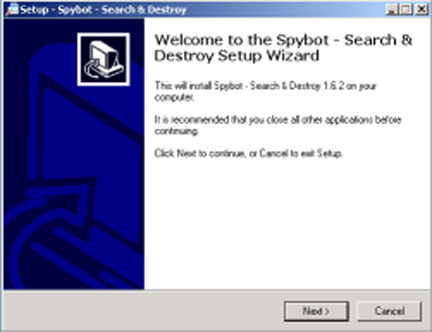
After the installation has finished, you will see a Spybot - Search & Destroy button on your desktop and in your start menu. Click on it to start Spybot-S&D the first time.
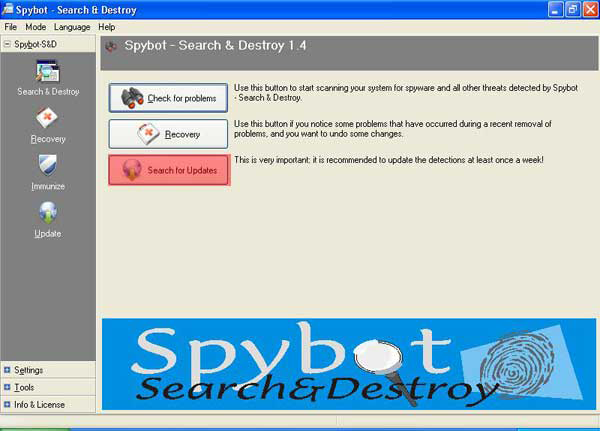
Once you've opened the program you will probably need to check for updates. You do this by clicking on the check for updates button (highlighted in red).
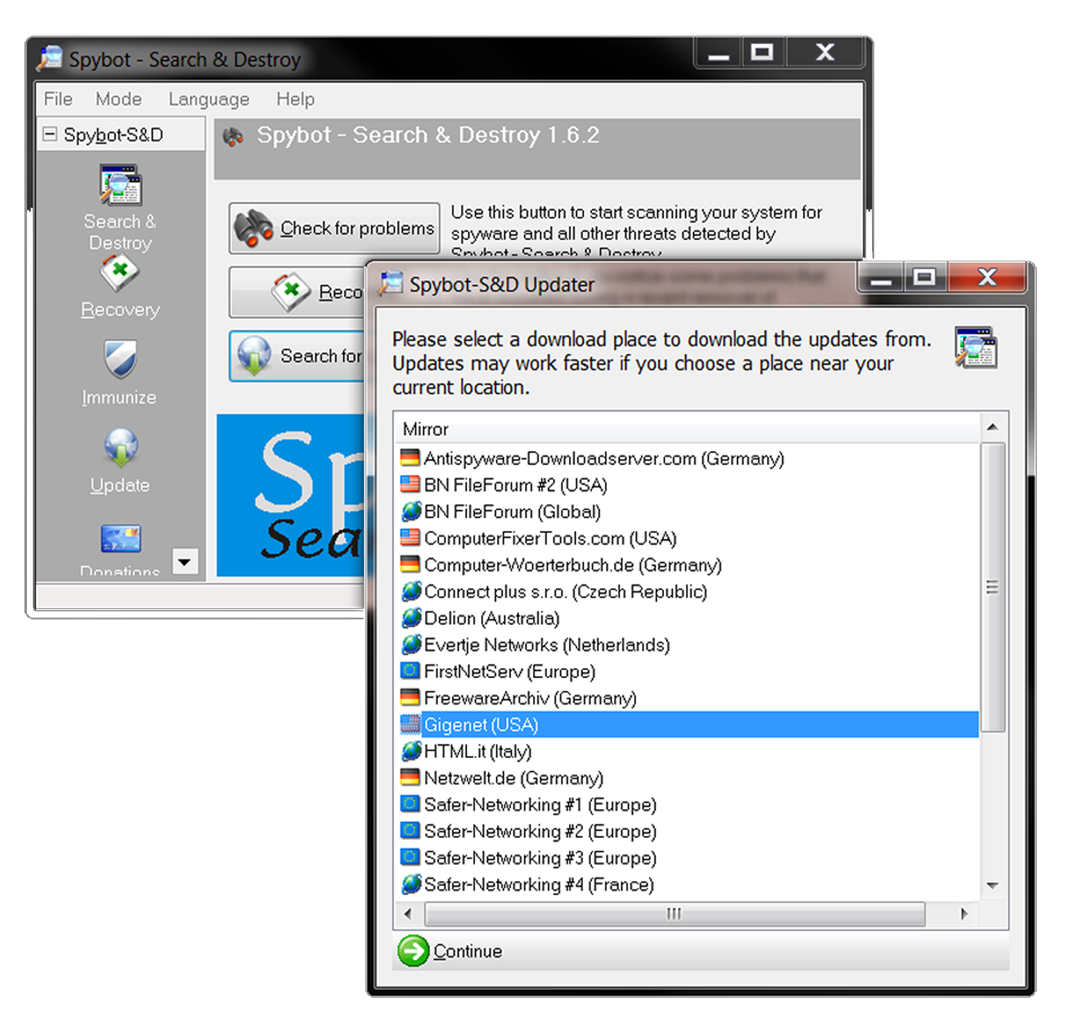
A Spybot-S&D Updater window will pop up asking you to select a place to download from. Select any "USA" location on the list and select "Continue".
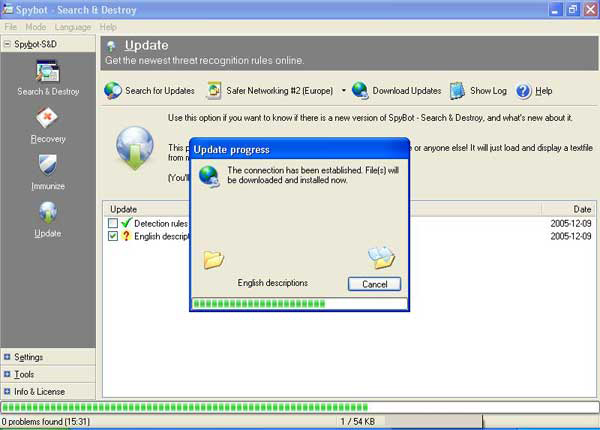
After Spybot S&D has searched for the updates needed for your program, you need to download the updates. You download the updates by first selecting the updates that Spybot S&D has searched for, and then you click download updates to download them.
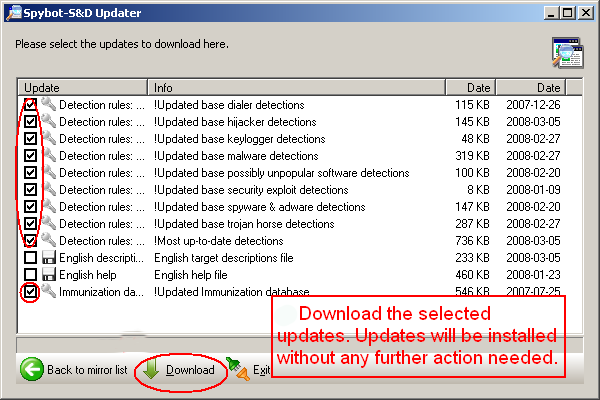
This is what your computer screen should look like after you've clicked Download Updates. After this is done Spybot S&D should be successfully updated. After downloads are completed, select "Exit"
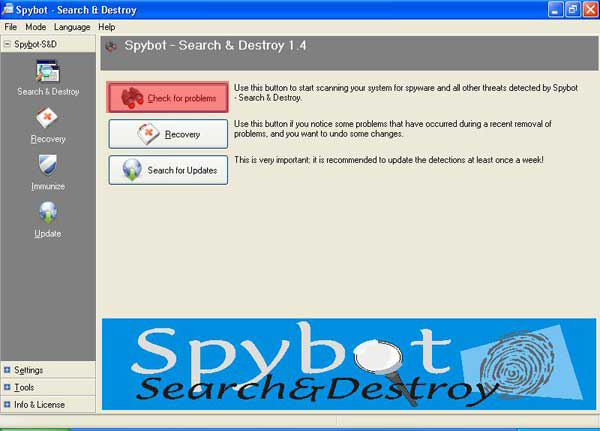
Now your finally ready to start searching for spyware programs on your computer. On the main screen you need to click Check for problems (highlighted in red).
This is what your computer screen should look like after you've clicked check for problems in the main screen of the Search & Destroy window. Spybot S&D is searching for harmful spyware programs installed on your computer.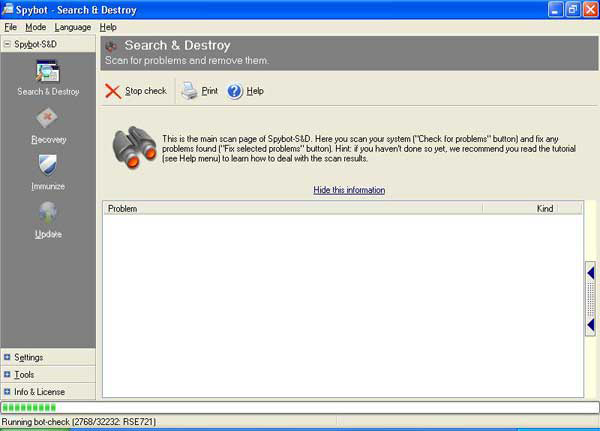
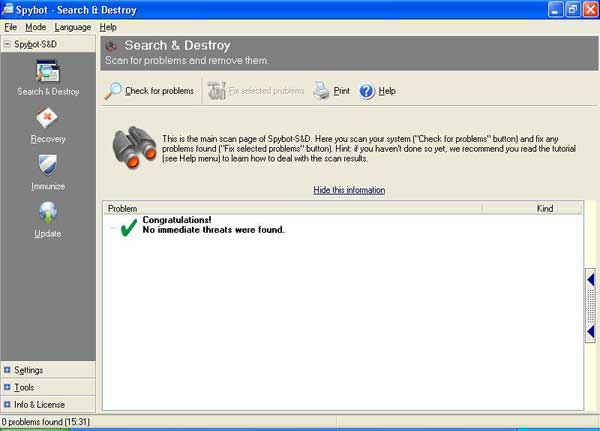
This is what your computer will look like if Spybot S&D has not found any harmful spyware programs installed on your computer.
This is what your computer will look like if Spybot S&D has found any harmful spyware programs installed on your computer. To remove them click Fix selected problems (highlighted in red). But first make sure that they all have a green check mark in the box first.
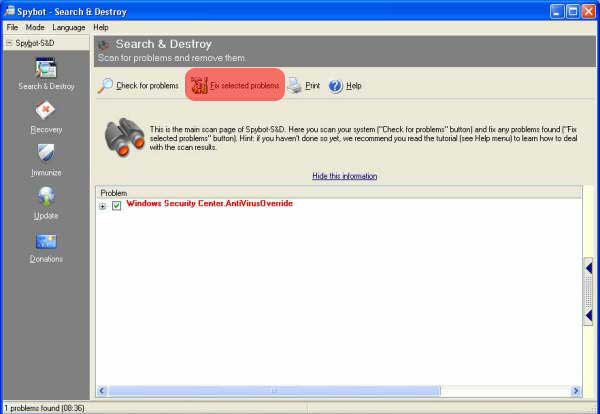
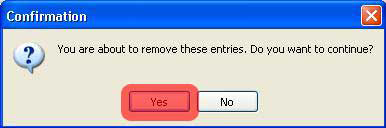
After you've clicked Fix selected problems you will get a prompt asking if you want to remove the selected entries. Click yes (highlighted in red).
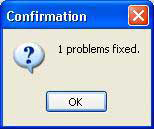
This is the new prompt you will get once Spybot S&D has deleted the selected spyware programs. Your computer is now clean from harmful spyware programs.



Cresco, IA 52136
(563) 547-3162 - Phone
(563) 547-2133 - Fax