Adaware
Adaware Tutorial
The first thing you need to do is download Adaware from our download page.
Scroll down and click Adaware. You will be prompted to "Run" or "Save" file. Select "Save" and save file to your desktop.
The file you have downloaded will be named Ad-AwareInstall.exe or similar. To install Adaware, all you have to do double-click on the file, select "Run" and the installation program will start . You can go with the default settings here and just click your way through the installer by using the Next button.
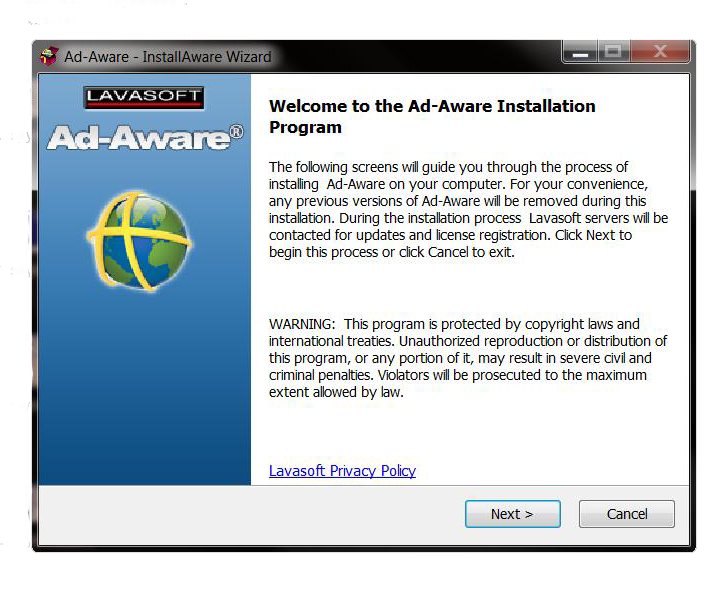
After the installation has finished, you will see a Adaware button on your desktop and in your start menu. Click on it to start Adaware the first time.
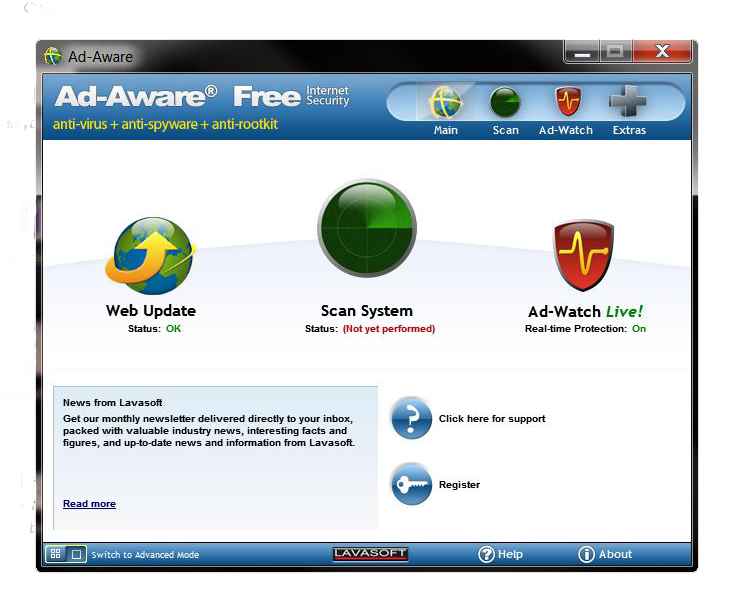
Before you scan your computer with Ad-Aware Free you should run Web Updates to make sure that you have the latest definition file. When this is done you are ready to perform your first scan. Click on the "Scan" button in the upper right (highlighted in red) and select "Full Scan". This is the in-depth scan that scans your whole computer for Spyware infections. The full system scan is highly recommended if you believe your computer is infected with Spyware which isn't found using the smart scan. Full system scan is notably slower than the smart scan, but has a higher probability to detect Spyware infections in archives or has been installed on drives other than your main hard drive. The full system scan uses the same settings as the smart system scan, but also scans all fixed drives and archive files.
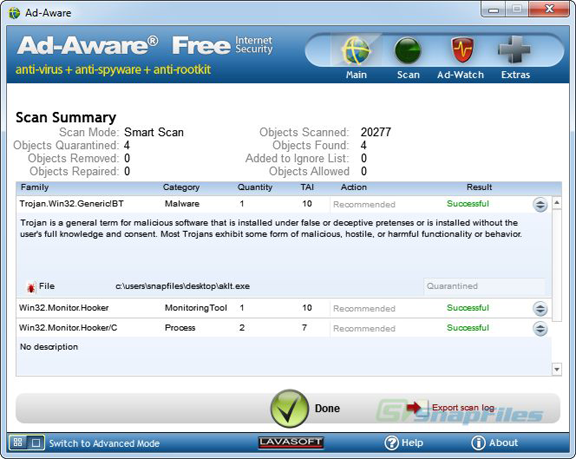
After the scan is completed you will be presented with a detailed listing of the items that were detected. Please be sure to review each item that has been presented in the results screen before removing them. Ad-Aware is designed to report possible suspicious content present on your system and to allow you a simple method for removing it should you so decide. We do not suggest or recommend that everything detected by Ad-Aware should be removed; it is up to you the user to make that decision.



Cresco, IA 52136
(563) 547-3162 - Phone
(563) 547-2133 - Fax